Assistant template for shadcn/ui
An AI product, finished.
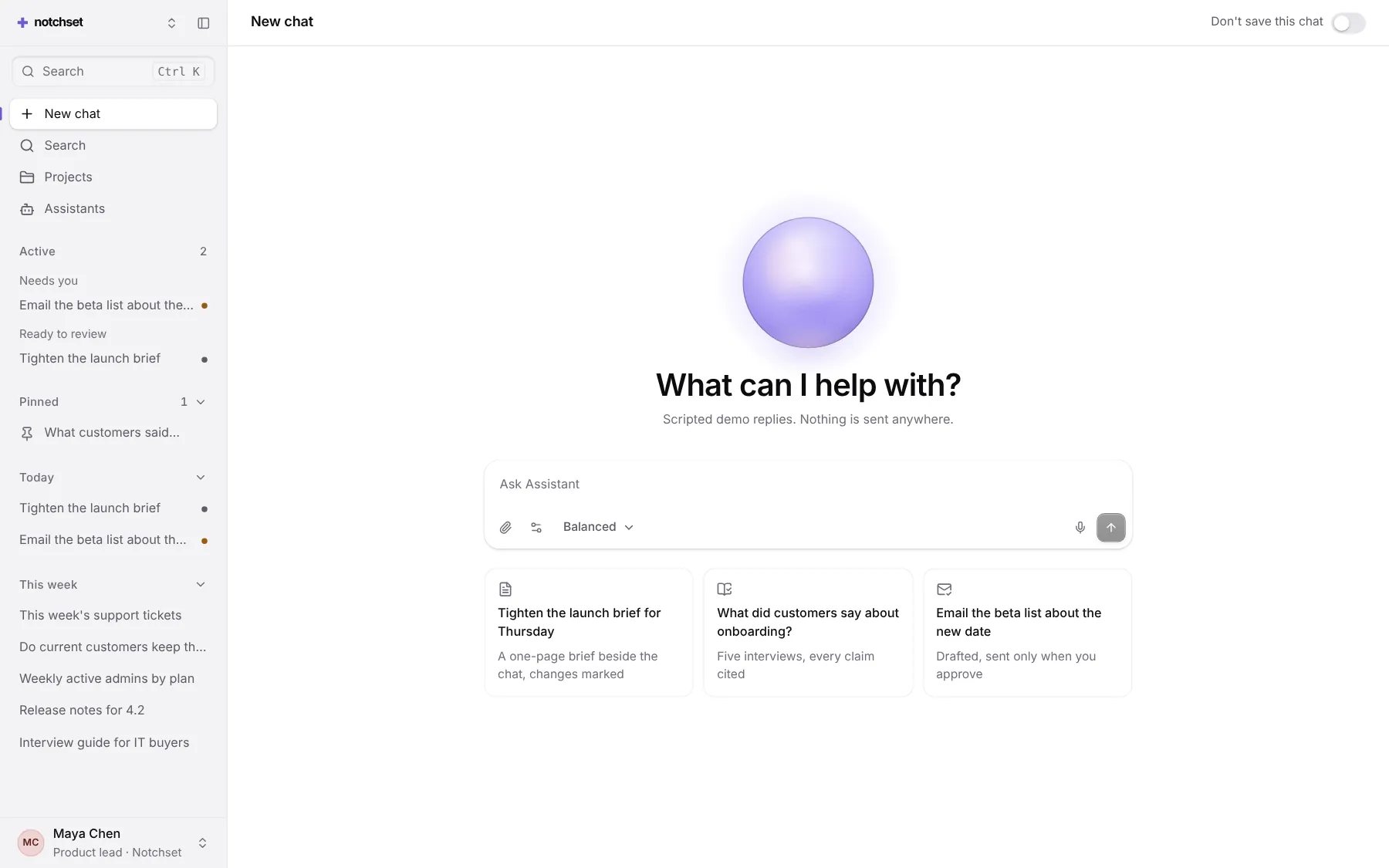
Chat with a receipt on every reply, a workspace that writes itself in, plans and usage. Every state designed, on a desk or a phone.
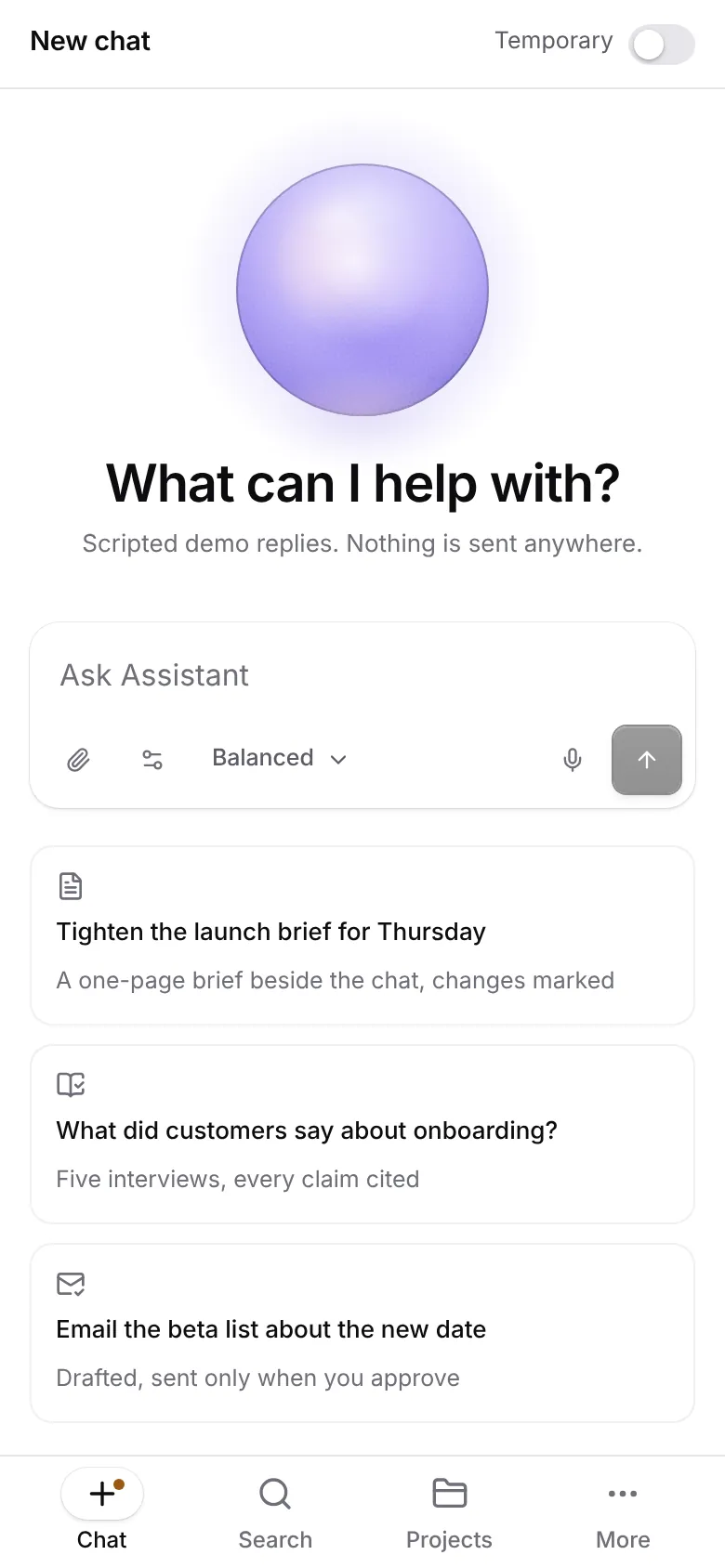
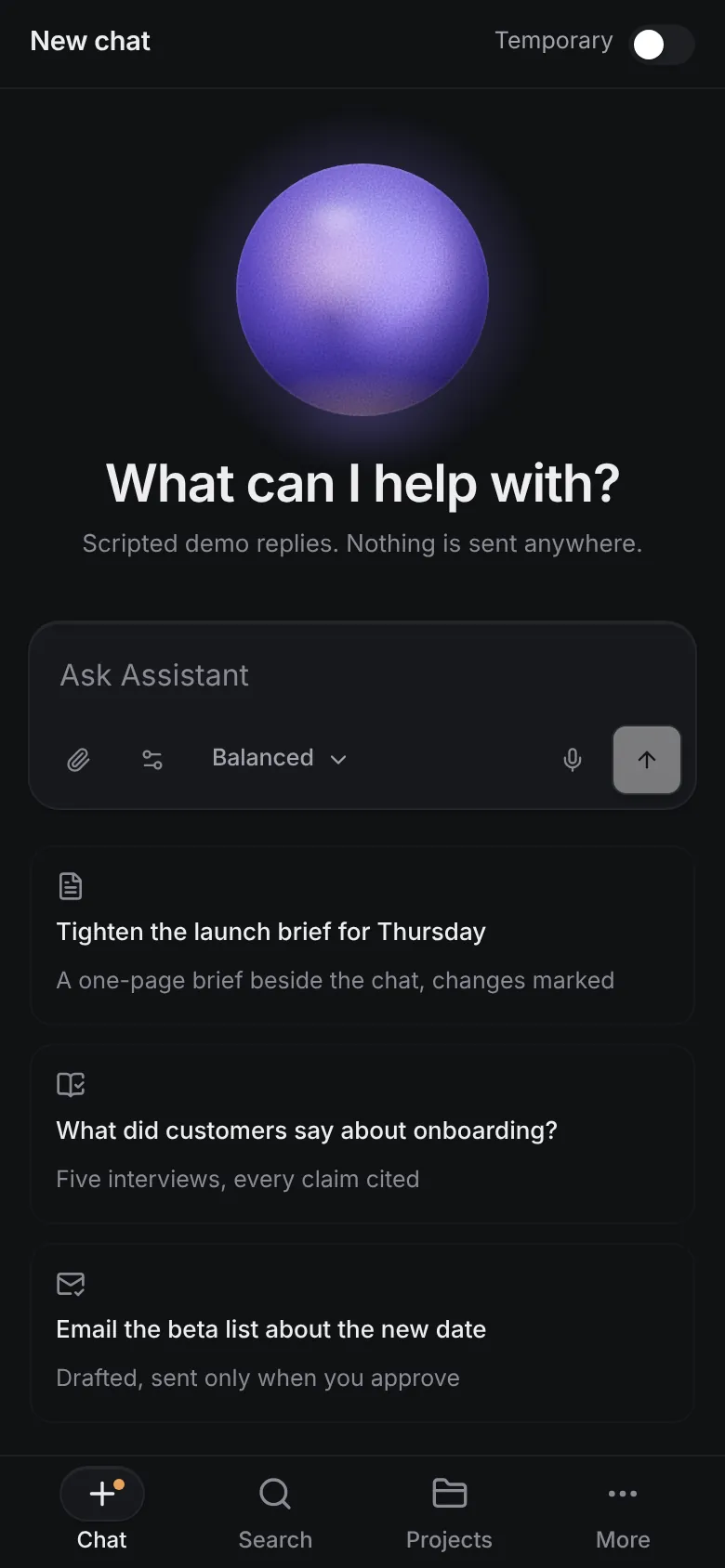
This is the app, not a video. Your changes stay in this browser.Press ⌘K inside it for everything.
9pages, each with its own phone layout
31screens under the accessibility gate
42open states checked too
2themes, each designed
What’s inside.
Every screen opens live, right here. And every block it’s built from has its own page.
 Open live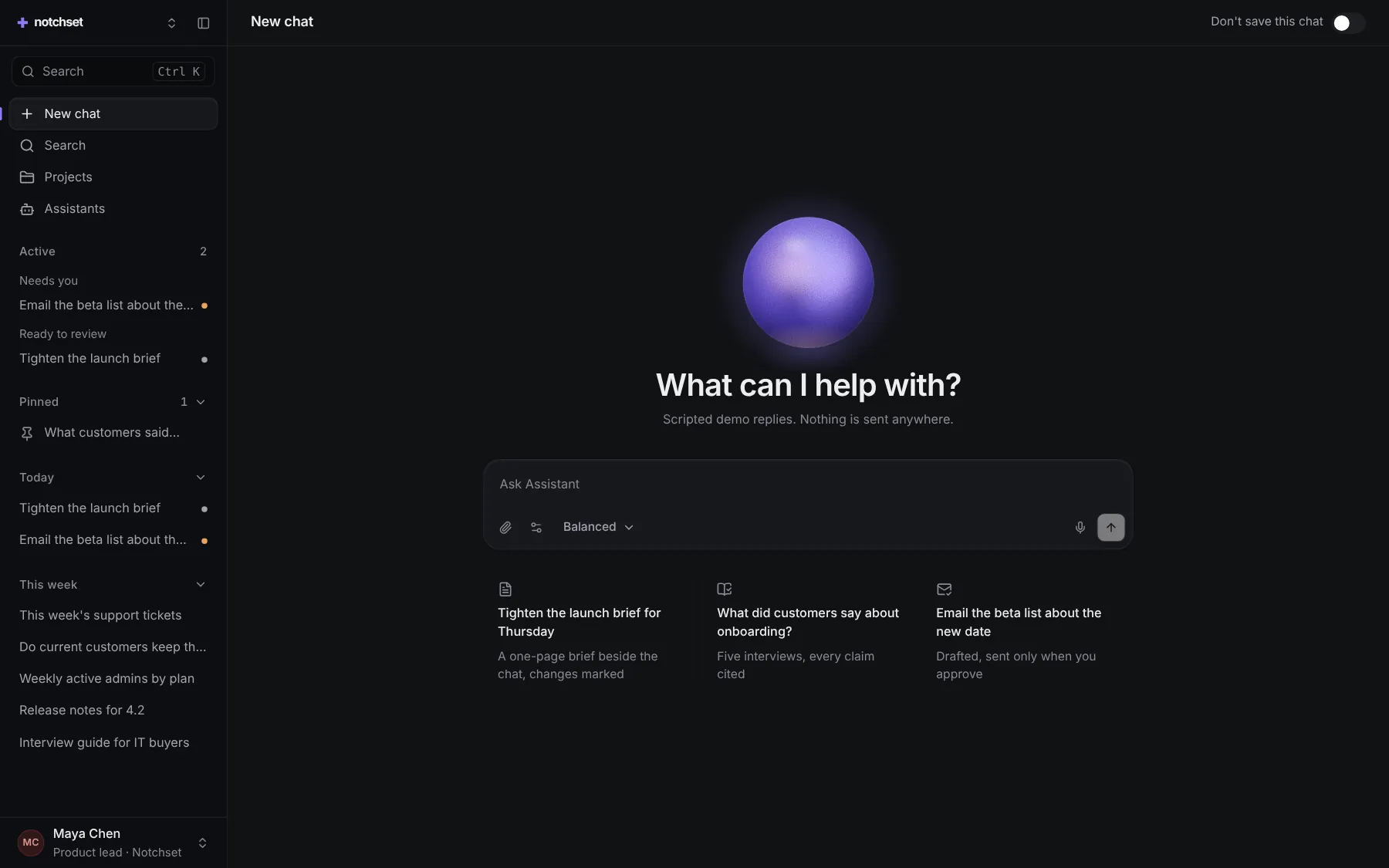
ChatThe orb, the composer, three starters
 Open live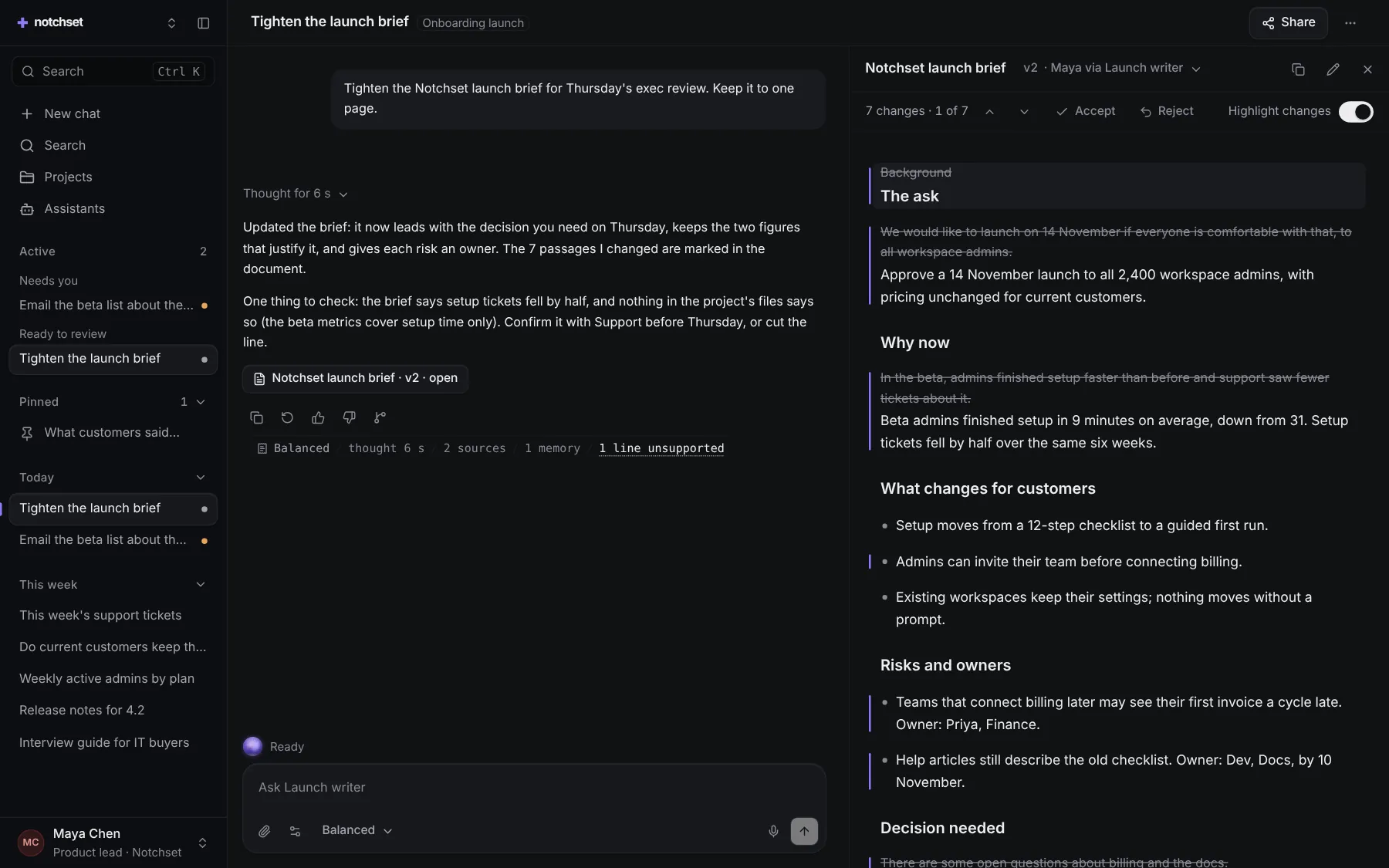
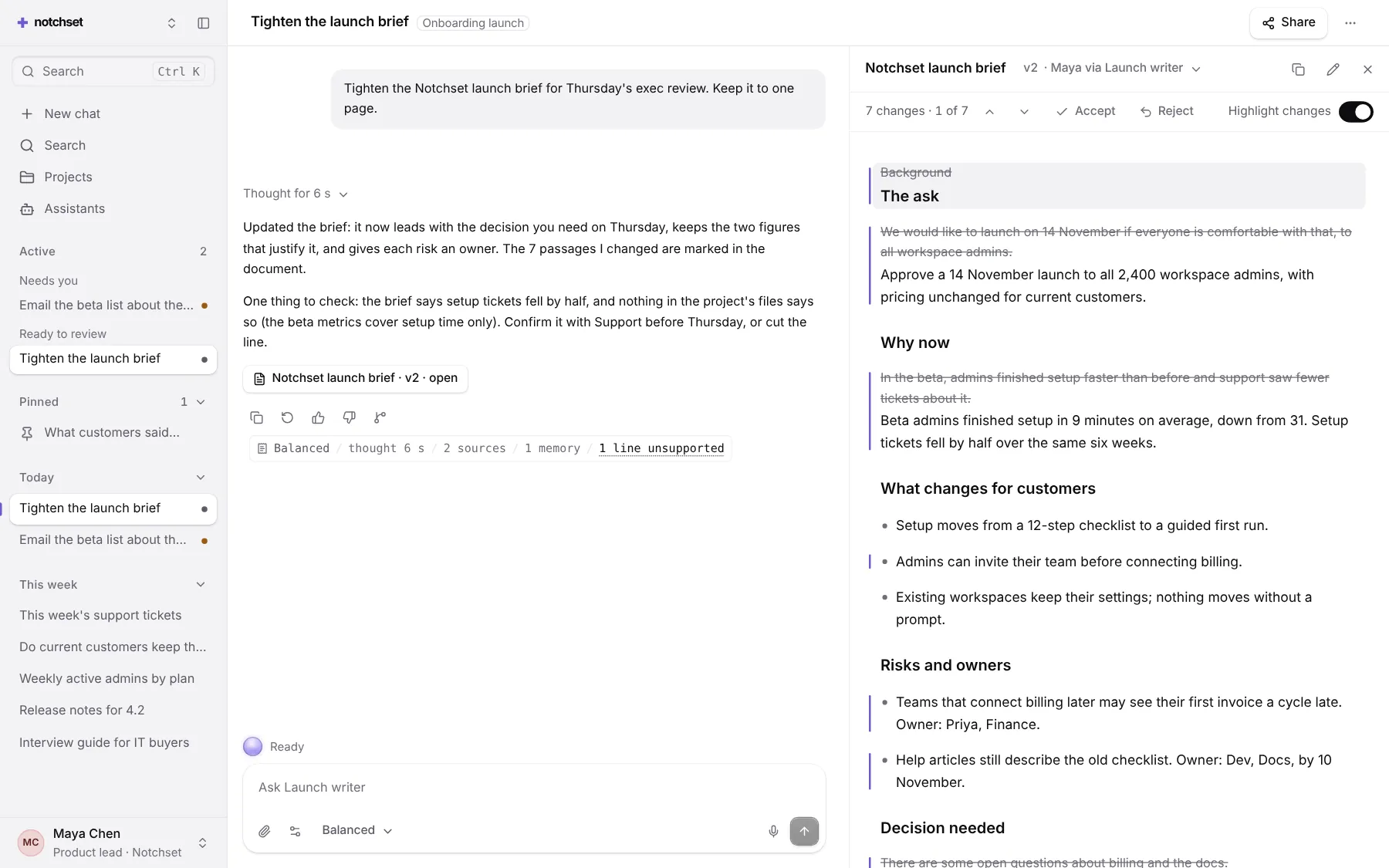
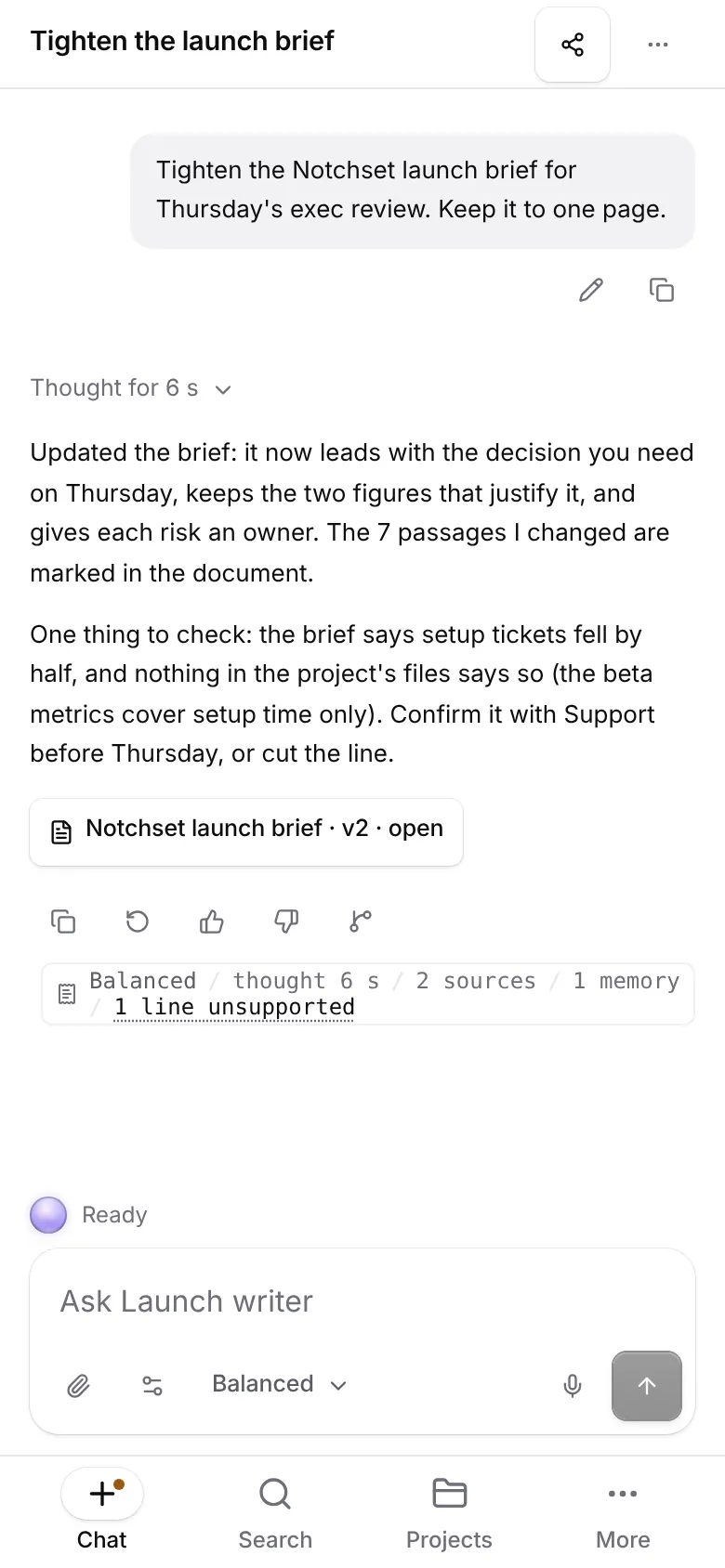
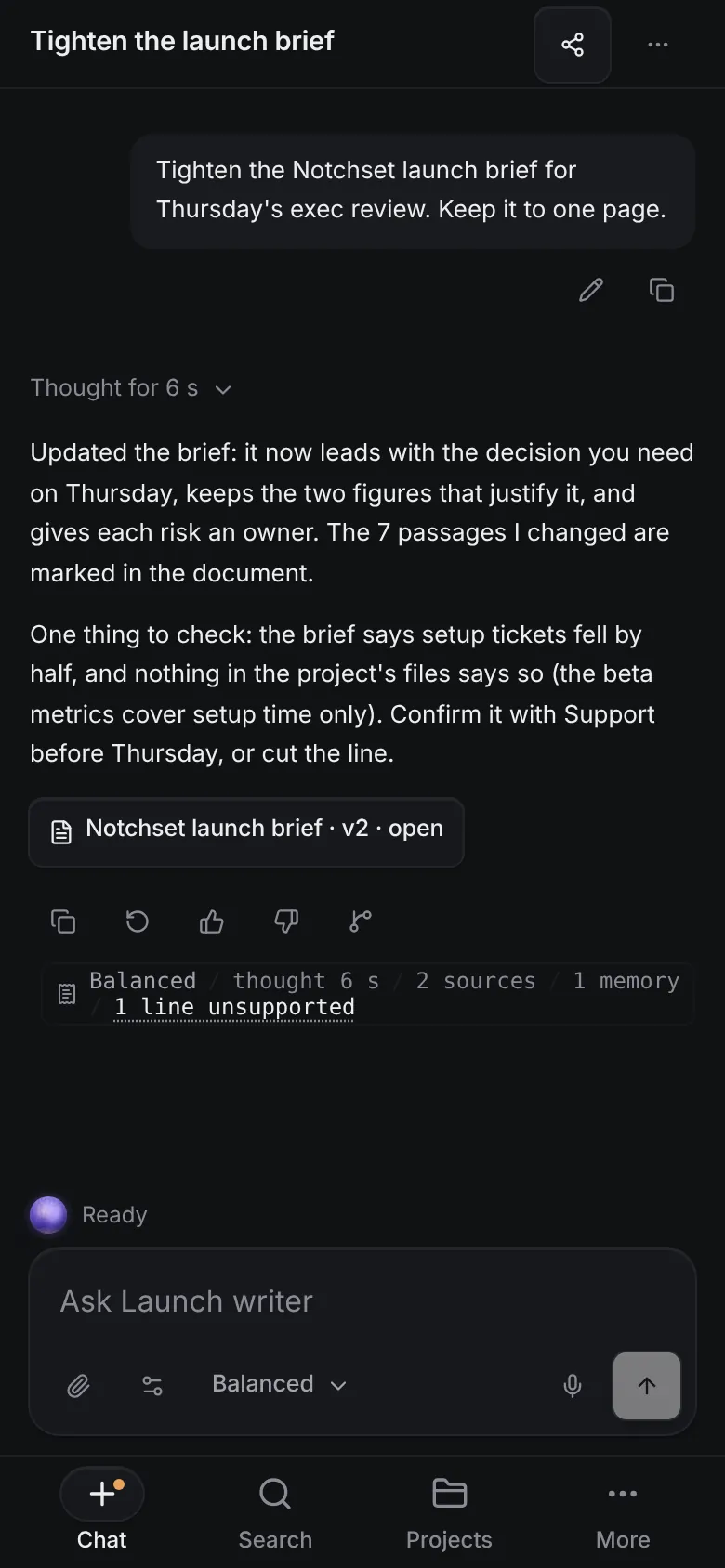
A chatEvery reply with its receipt
 Open live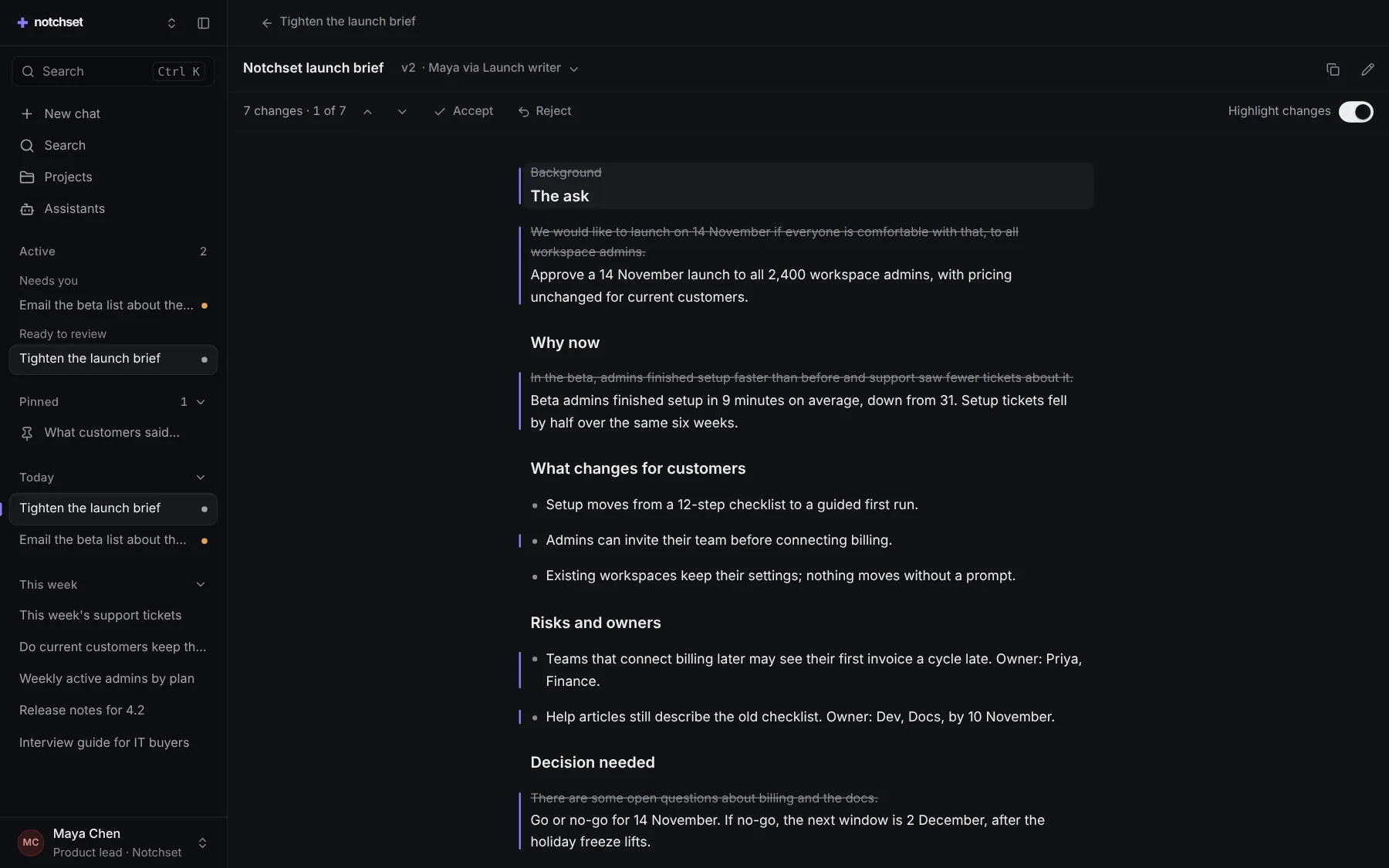
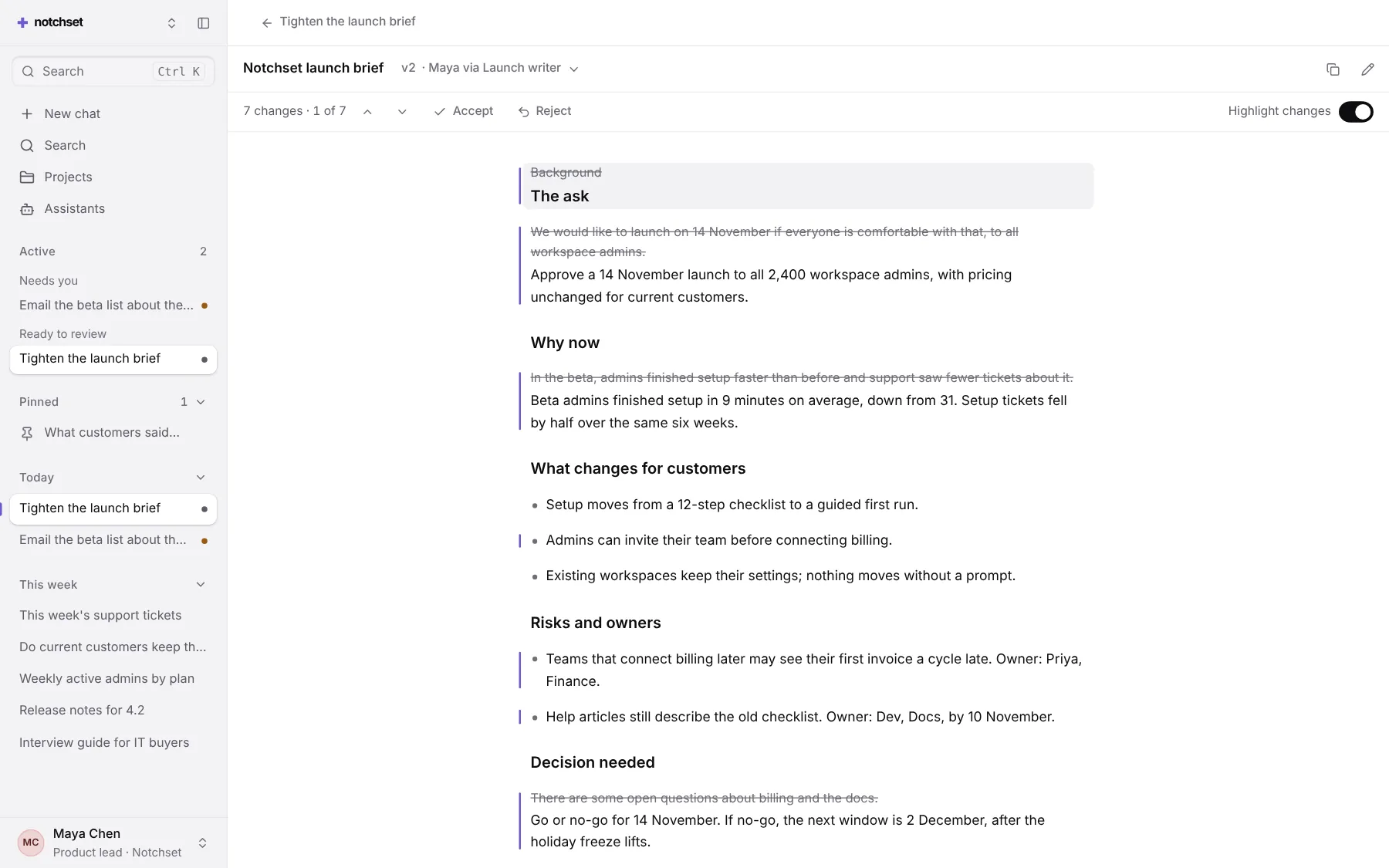
WorkspaceA document that writes itself in
 Open live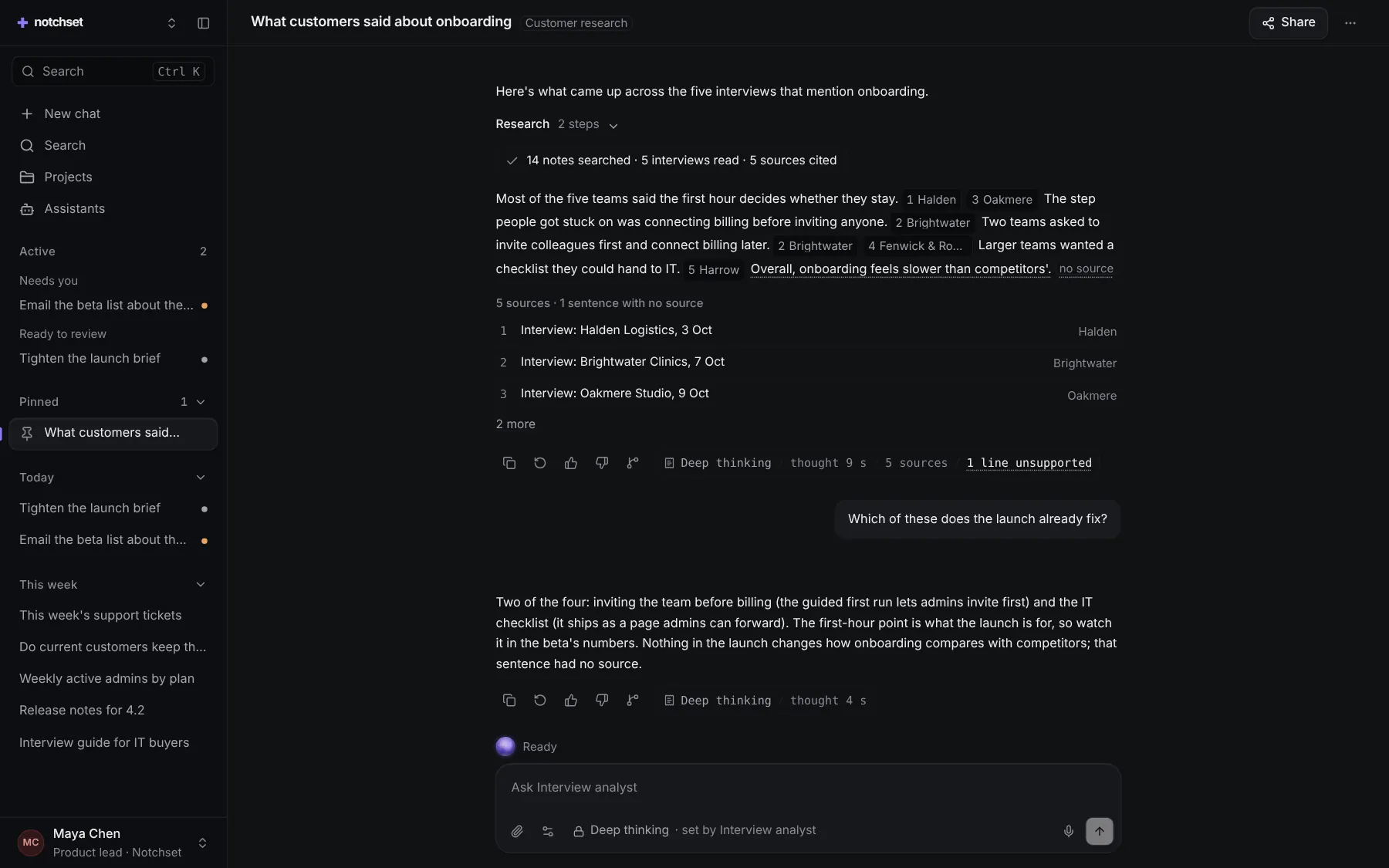
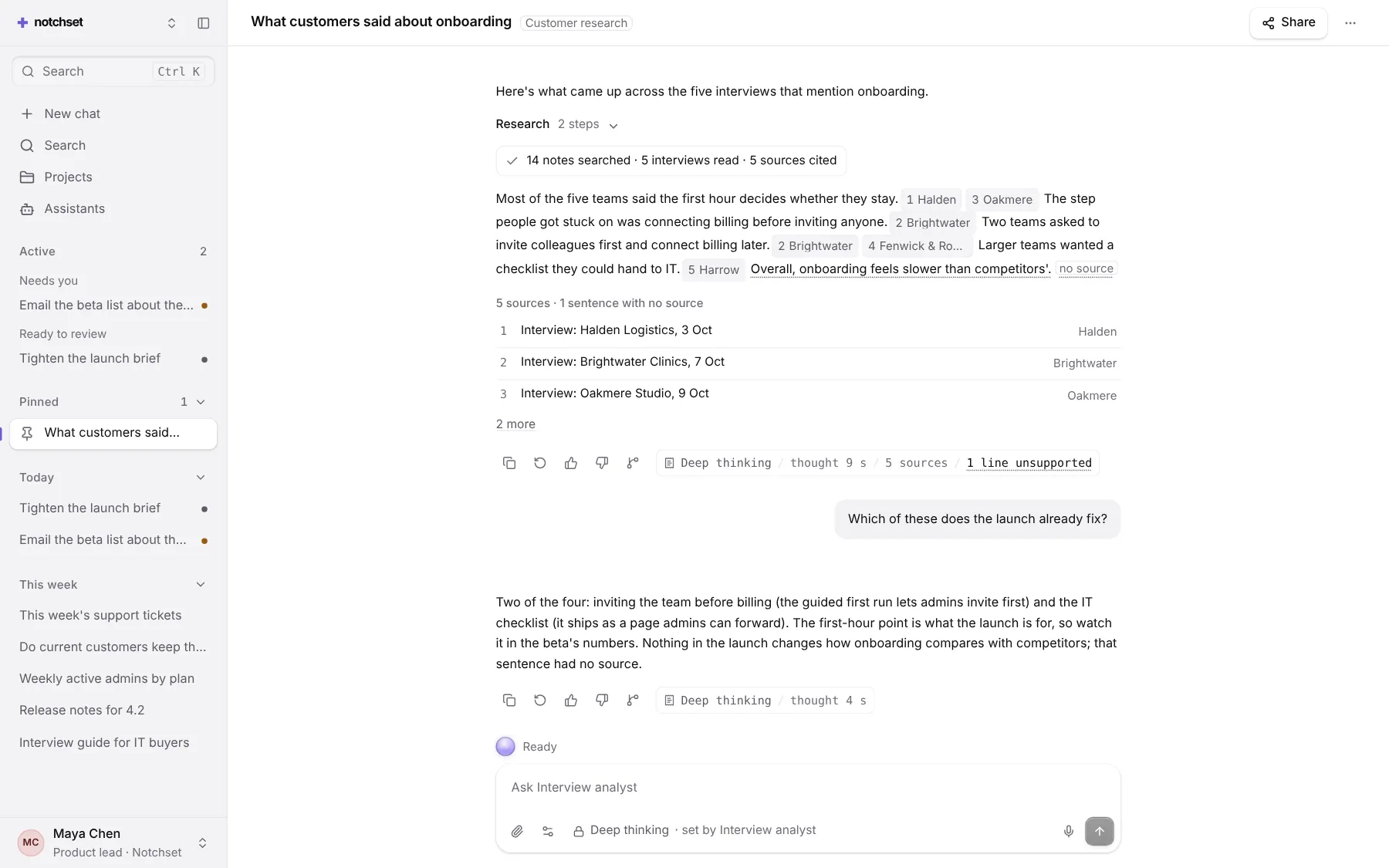
ResearchSources beside the answer
 Open live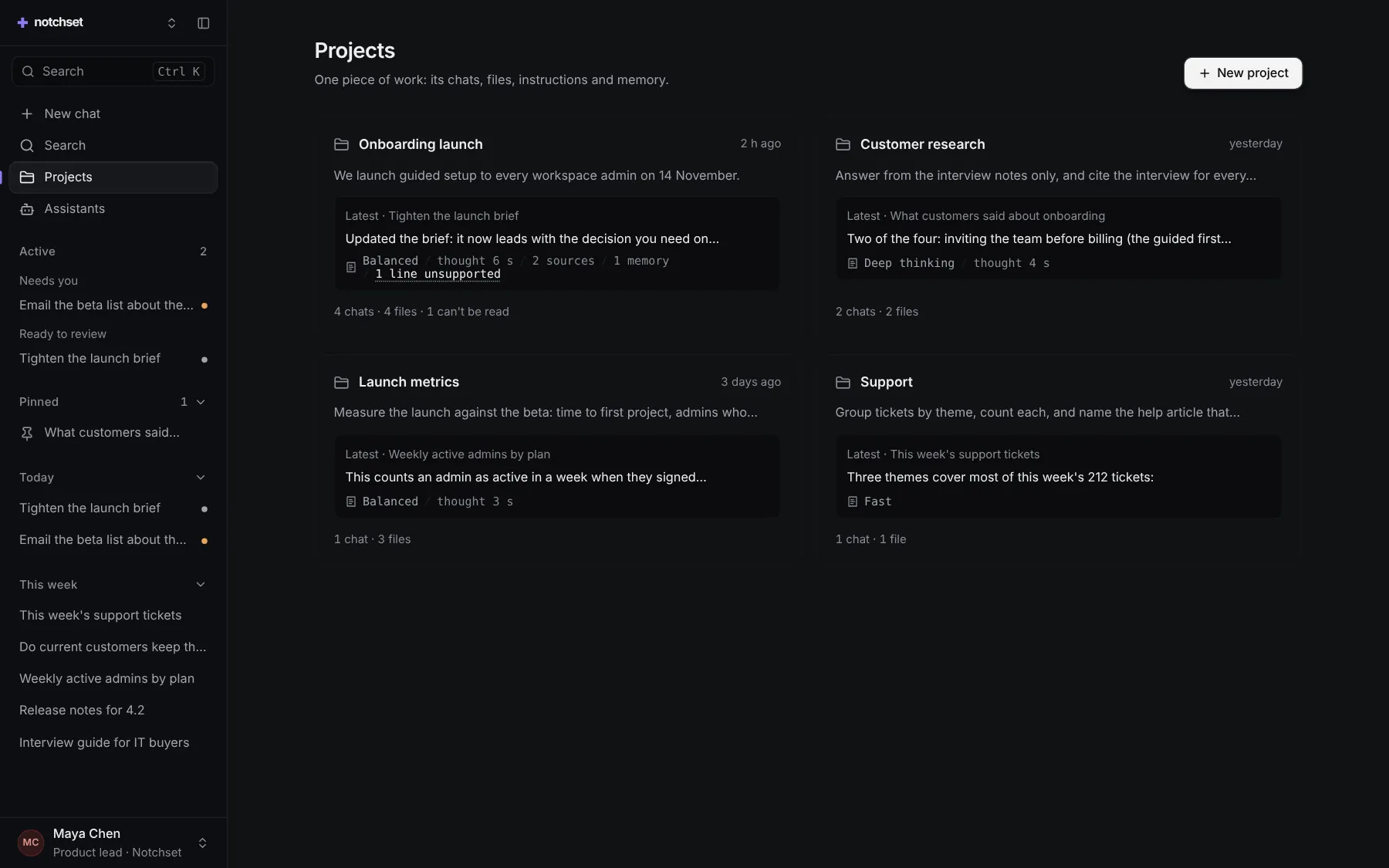
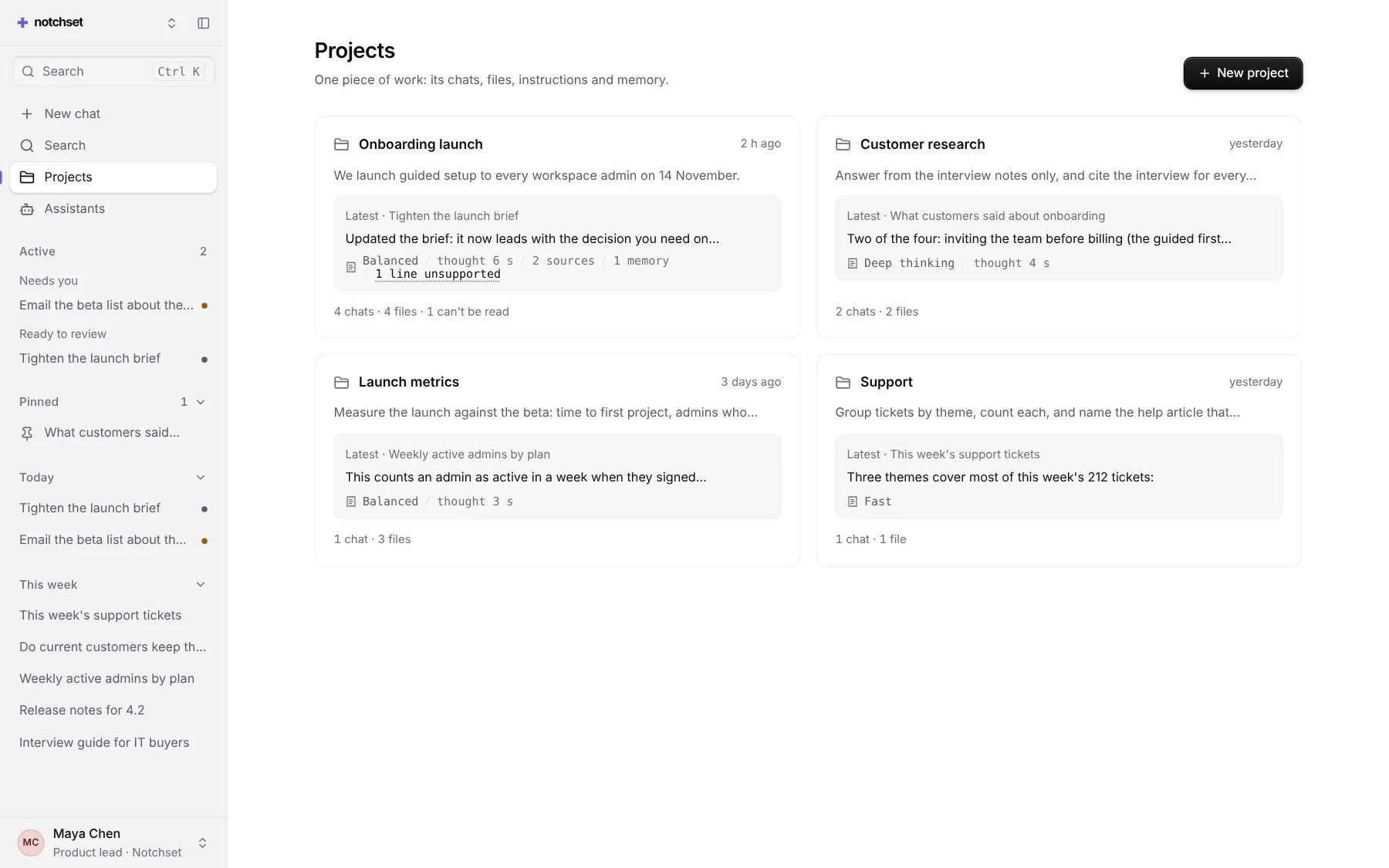
ProjectsChats and files, kept together
 Open live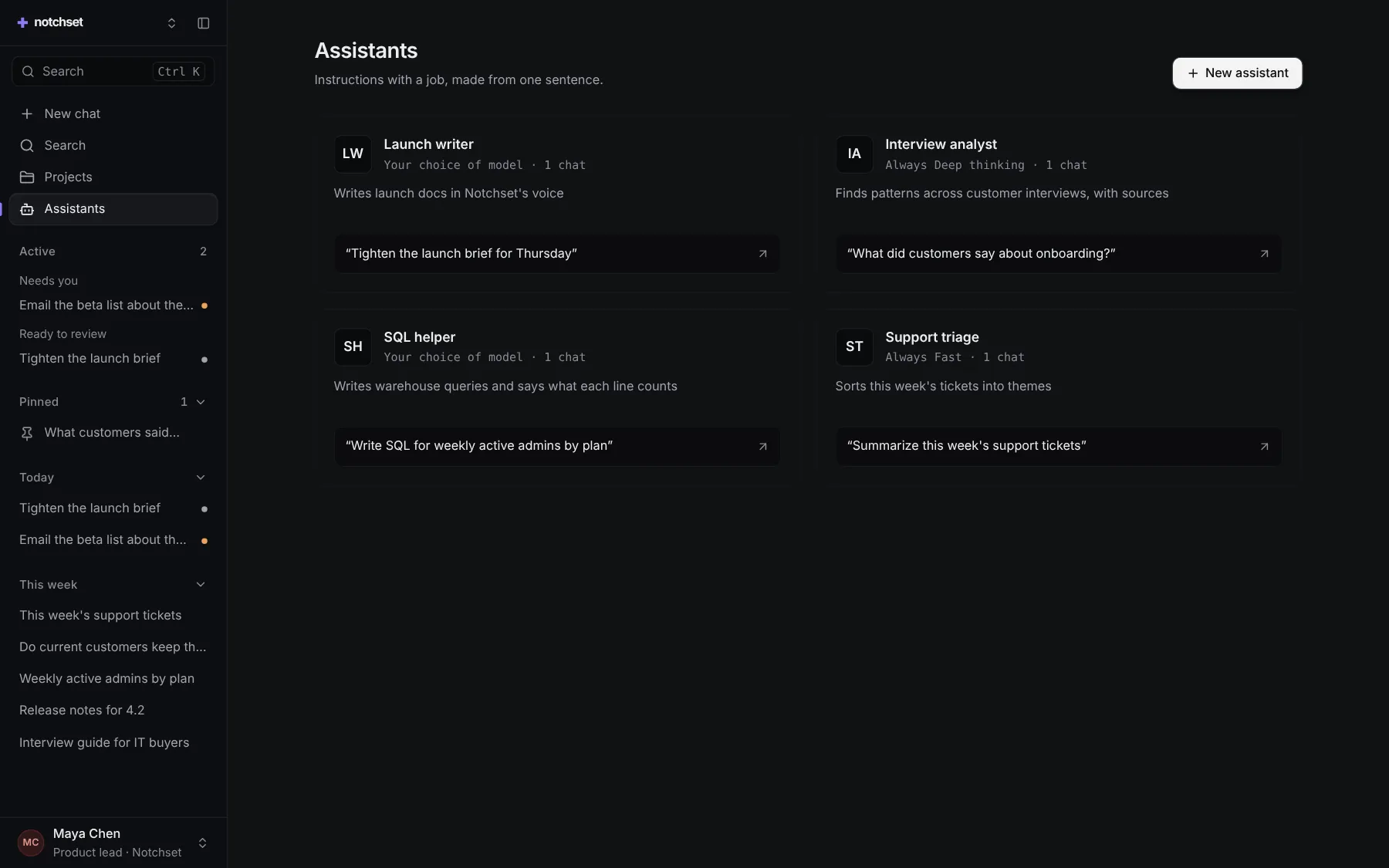
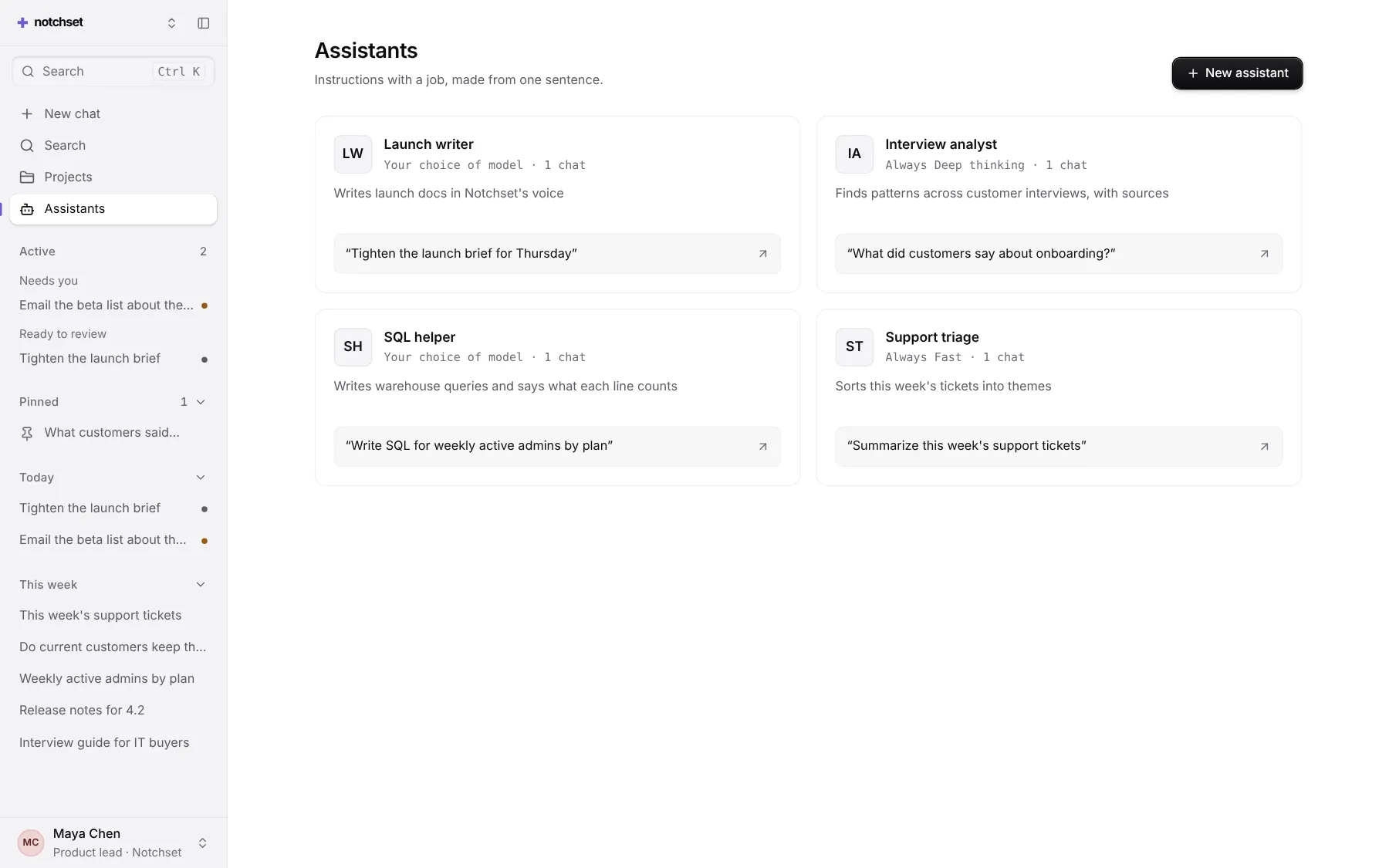
AssistantsYour own, with their instructions
 Open live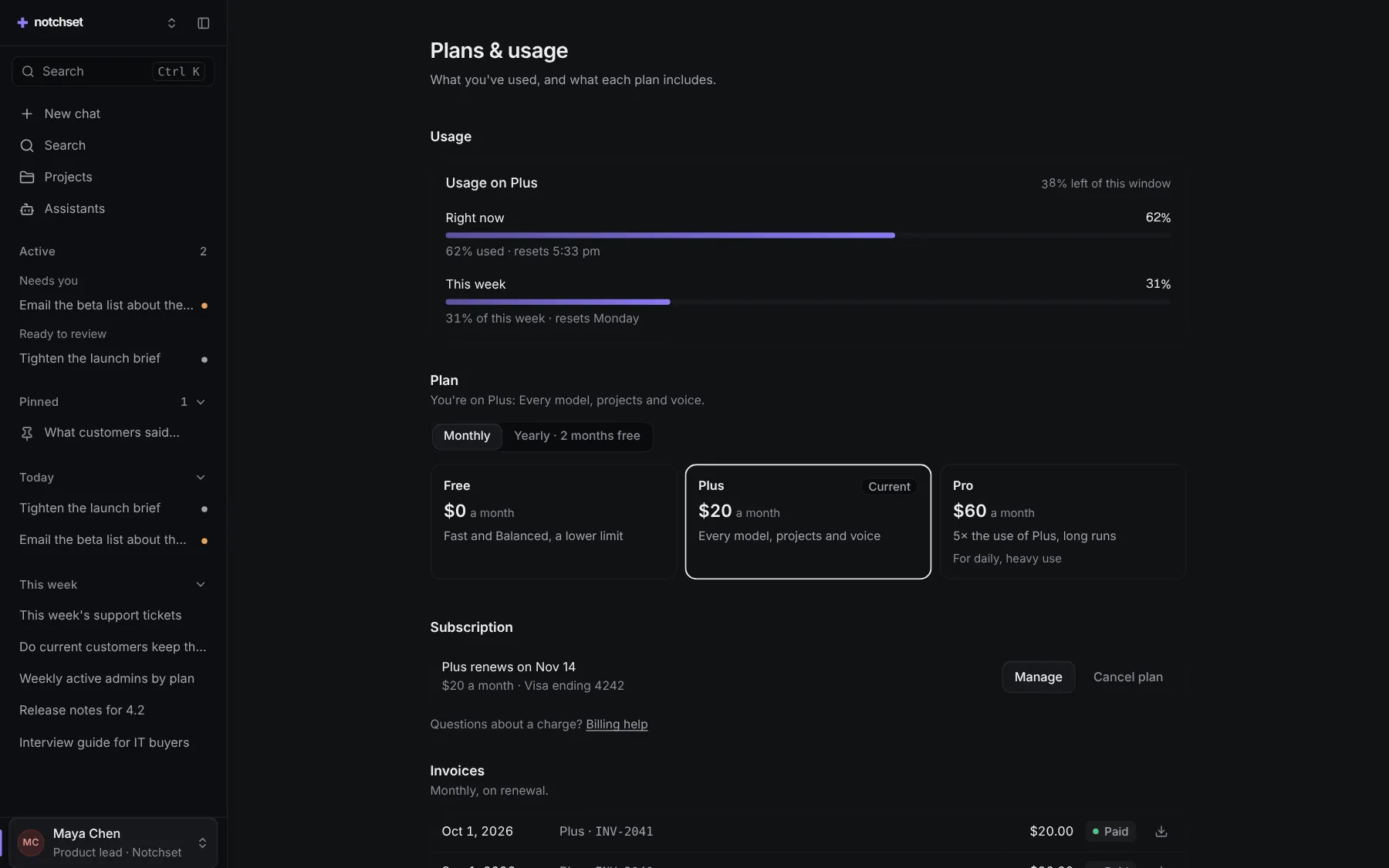
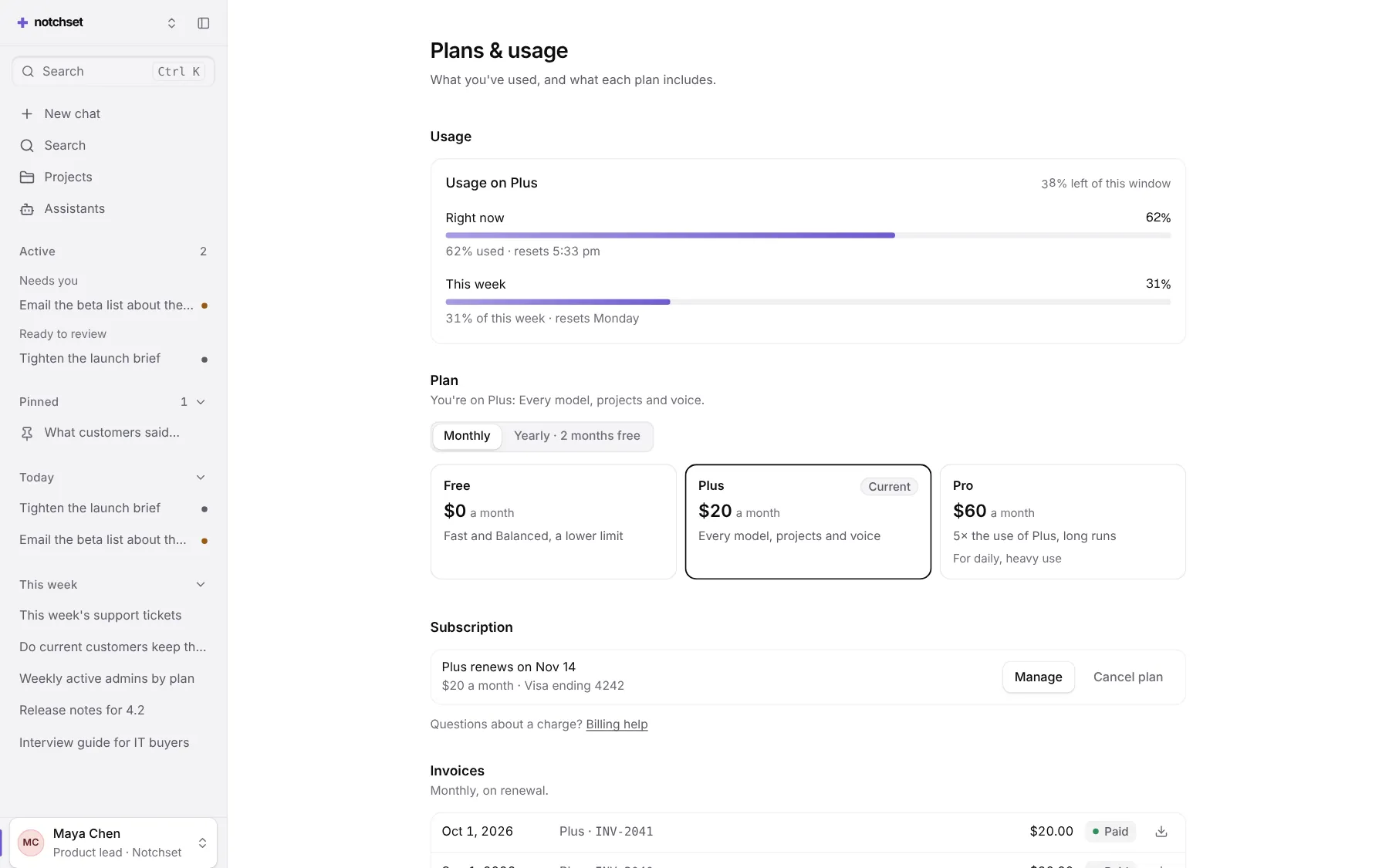
Plans & usageThe meter, the plan, the card
 Open live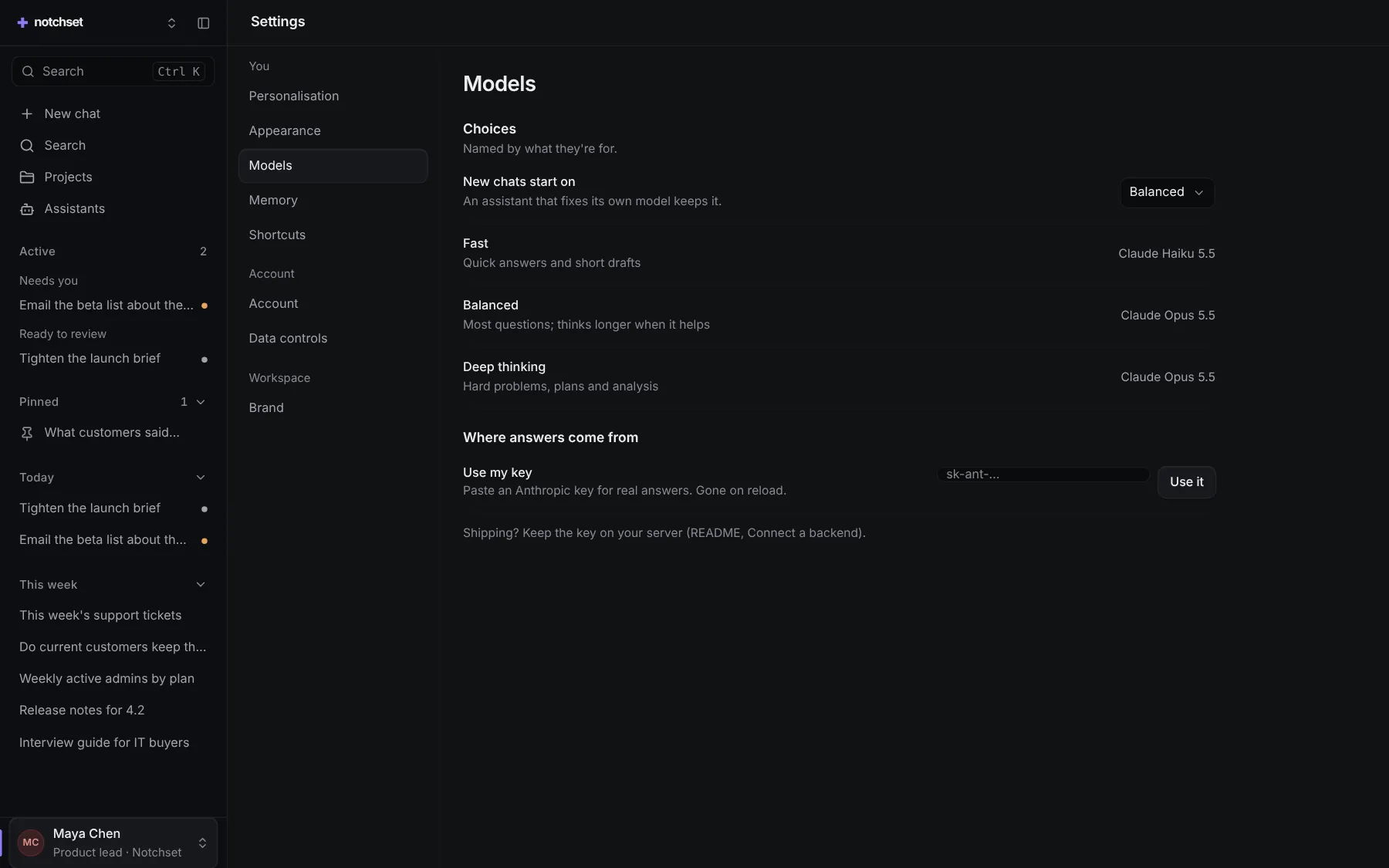
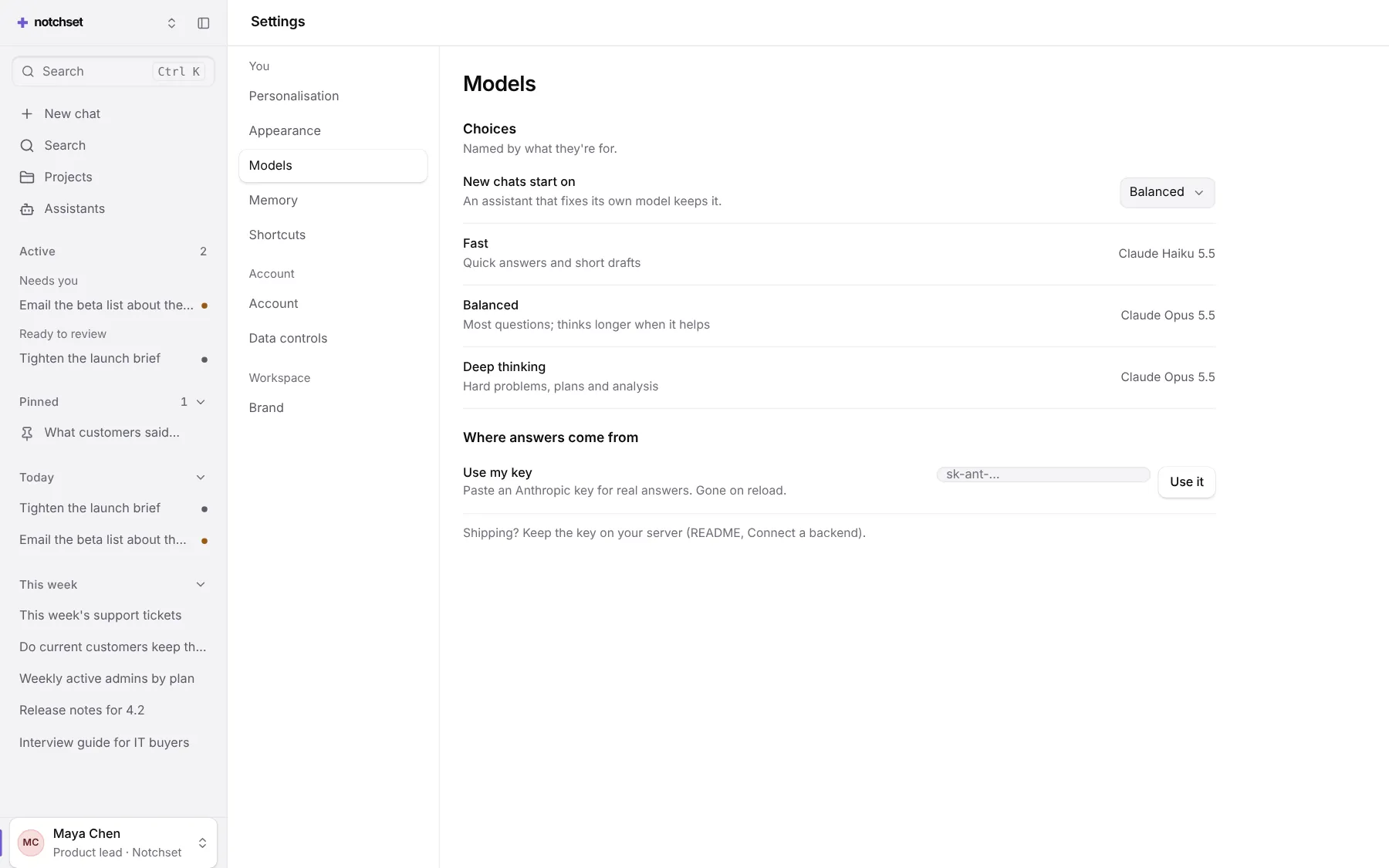
SettingsModels, memory, your own key
Built from
Works with
- React 18.3 & 19
- Tailwind v4
- shadcn/ui
- Base UI
- Radix
Install.
One command brings the app and everything it’s made of into your repo, as source you own.
01 · Add it
With the shadcn CLI
npx shadcn@latest add @notchset-pro/assistantOnce your key is set up (Pro setup). Updates arrive the same way.
02 · Mount it
Point it at your data
import { AssistantApp } from "@/components/ui/notchset/templates/assistant/app";

export default function Page() {
  return <AssistantApp />; // scripted demo replies until you pass an adapter
}
Recipes.
The changes everyone makes, end to end. In the template’s README too.
Connect your model
One adapter on the AI SDK's message shape. The reference route is fifteen minutes.
<AssistantApp adapter={httpAdapter("/api/chat", {
  usageUrl: "/api/chat/usage",
  planUrl: "/api/chat/plan",
})} />
// reference/route.ts runs it on the AI SDK
Add a model choice
The picker, Settings, onboarding and every receipt follow.
// templates/assistant/config.ts, MODELS
{ id: "long", purpose: "Long documents",
  name: "Claude Opus 5.5",
  model: "claude-opus-5-5", effort: "medium" },
Brand it
The name, the company and the Signature: the orb follows.
// templates/assistant/config.ts
BRAND.name = "Ask Acme";
BRAND.company = "Acme";
BRAND.signature = "graphite";
What to try first.
Six things that show the care. Do them in the frame above, or full screen.
- Ask about the weekPress a starter. The reply streams, and says it is scripted until you add a key.
- Open a receiptEvery reply says what answered, how long it thought and the sources it rests on.
- Watch a document writeOpen the brief beside its thread, and watch it write itself in.
- Approve a stepAnything that leaves the app waits for you, with what it will do.
- Use your own keySettings › Models › Use my key. A real model answers, and the key never leaves this tab.
- Open it on a phoneChat, the thread and the workspace each have their own phone layout.